Understanding Actions
Background
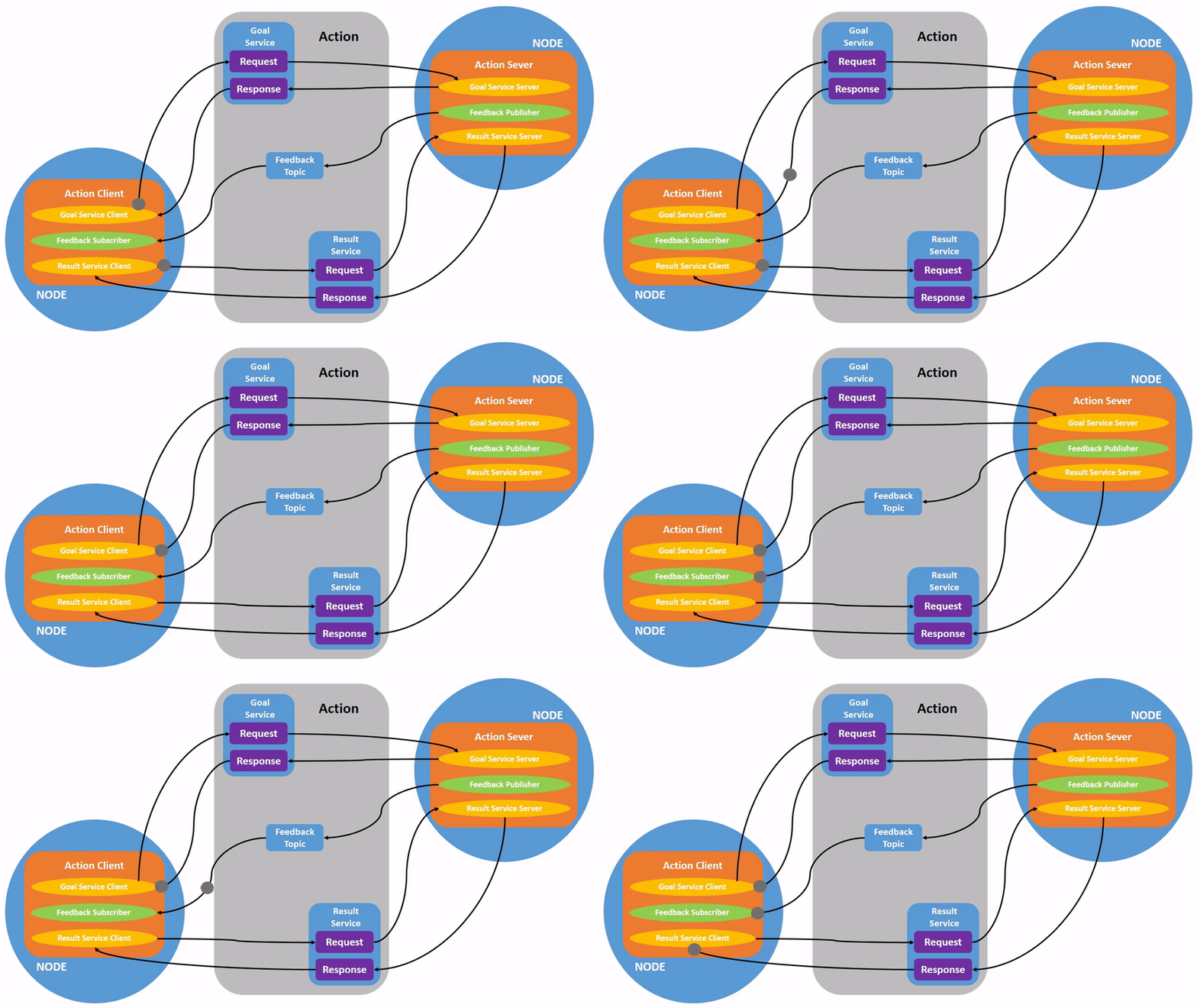
An action is a type of communication in ROS 2 used for long-running tasks. It consists of three parts: goal, feedback, and result.
Actions are built on top of topics and services. They function similarly to services, but actions can be canceled. Unlike services that return only a single response, actions also provide steady feedback.
Actions use a client-server model, similar to the publisher-subscriber model (described in the Understanding Topics tutorial). An "action client" node sends a goal to an "action server" node, which acknowledges the goal and returns a stream of feedback and results.
Tasks
1. Setup
Launch two turtlesim nodes, /turtlesim and /teleop_turtle.
Open a new terminal and run:
ros2 run turtlesim turtlesim_nodeOpen another terminal and run:
ros2 run turtlesim turtle_teleop_key2. Using Actions
When you launch the /teleop_turtle node, you will see the following message in the terminal:
Use arrow keys to move the turtle.
Use G|B|V|C|D|E|R|T keys to rotate to absolute orientations. 'F' to cancel a rotation.
Let's focus on the second line, which corresponds to an action. (The first line corresponds to the "cmd_vel" topic discussed in the previous tutorial on topics.)
Notice that on a QWERTY keyboard, the letters G|B|V|C|D|E|R|T form a "box" around the F key. (If you are not using a QWERTY keyboard, please check this link to follow along.) Each key's position around F corresponds to a direction in turtlesim. For example, pressing E will rotate the turtle to the upper left corner.
Be sure to watch the terminal running the /turtlesim node. Each time you press one of the keys, a goal is sent to the action server in the /turtlesim node. The goal is to rotate the turtle to face a specific direction. When the turtle completes the rotation, a message that communicates the result of the goal should be displayed:
[INFO] [turtlesim]: Rotation goal completed successfullyPressing the F key will cancel the goal that is currently being executed.
Try pressing the C key before the turtle completes the rotation, and then press the F key. In the terminal running the /turtlesim node, you will see the following message:
[INFO] [turtlesim]: Rotation goal canceledNot only the client (what you type in teleop), but also the server (/turtlesim node) can stop the execution of a goal. When the server chooses to stop processing a goal, it is called aborting the goal.
Before the first rotation is completed, try pressing the D key, and then the G key. In the terminal running the /turtlesim node, you will see the following message:
[WARN] [turtlesim]: Rotation goal received before a previous goal finished. Aborting previous goalThis action server chose to abort the first goal because it received a new goal. It could also choose other actions, such as rejecting the new goal or executing the second goal after the first goal is completed. Do not assume that every action server will choose to abort the current goal when it receives a new goal.
3. ROS 2 Node Information
To view the list of actions provided by a node, such as /turtlesim in this example, open a new terminal and run the following command:
ros2 node info /turtlesimIt returns the list of subscribers, publishers, services, action servers, and action clients of /turtlesim:
/turtlesim
  Subscribers:
    /parameter_events: rcl_interfaces/msg/ParameterEvent
    /turtle1/cmd_vel: geometry_msgs/msg/Twist
  Publishers:
    /parameter_events: rcl_interfaces/msg/ParameterEvent
    /rosout: rcl_interfaces/msg/Log
    /turtle1/color_sensor: turtlesim/msg/Color
    /turtle1/pose: turtlesim/msg/Pose
  Service Servers:
    /clear: std_srvs/srv/Empty
    /kill: turtlesim/srv/Kill
    /reset: std_srvs/srv/Empty
    /spawn: turtlesim/srv/Spawn
    /turtle1/set_pen: turtlesim/srv/SetPen
    /turtle1/teleport_absolute: turtlesim/srv/TeleportAbsolute
    /turtle1/teleport_relative: turtlesim/srv/TeleportRelative
    /turtlesim/describe_parameters: rcl_interfaces/srv/DescribeParameters
    /turtlesim/get_parameter_types: rcl_interfaces/srv/GetParameterTypes
    /turtlesim/get_parameters: rcl_interfaces/srv/GetParameters
    /turtlesim/list_parameters: rcl_interfaces/srv/ListParameters
    /turtlesim/set_parameters: rcl_interfaces/srv/SetParameters
    /turtlesim/set_parameters_atomically: rcl_interfaces/srv/SetParametersAtomically
  Service Clients:

  Action Servers:
    /turtle1/rotate_absolute: turtlesim/action/RotateAbsolute
  Action Clients:
Note that the /turtle1/rotate_absolute action in /turtlesim is under the action server. This means that /turtlesim responds to the /turtle1/rotate_absolute action and provides feedback.
The name of the /teleop_turtle node is /turtle1/rotate_absolute, which is under the action client. This means that it sends the target of the action name. To view it, run:
ros2 node info /teleop_turtleThe following will be returned:
/teleop_turtle
  Subscribers:
    /parameter_events: rcl_interfaces/msg/ParameterEvent
  Publishers:
    /parameter_events: rcl_interfaces/msg/ParameterEvent
    /rosout: rcl_interfaces/msg/Log
    /turtle1/cmd_vel: geometry_msgs/msg/Twist
  Service Servers:
    /teleop_turtle/describe_parameters: rcl_interfaces/srv/DescribeParameters
    /teleop_turtle/get_parameter_types: rcl_interfaces/srv/GetParameterTypes
    /teleop_turtle/get_parameters: rcl_interfaces/srv/GetParameters
    /teleop_turtle/list_parameters: rcl_interfaces/srv/ListParameters
    /teleop_turtle/set_parameters: rcl_interfaces/srv/SetParameters
    /teleop_turtle/set_parameters_atomically: rcl_interfaces/srv/SetParametersAtomically
  Service Clients:

  Action Servers:

  Action Clients:
    /turtle1/rotate_absolute: turtlesim/action/RotateAbsolute
4 ros2 action list
To identify all actions in the ROS graph, run the following command:
ros2 action listThe following will be returned:
/turtle1/rotate_absoluteCurrently, there is only one action in the ROS graph. It controls the rotation of the turtle, as you have seen before. In addition, you already know that for this action, there is an action client (located in /teleop_turtle) and an action server (located in /turtlesim), which can be viewed using the ros2 node info <node_name> command.
4.1 ros2 action list -t
Actions also have types, similar to topics and services. To find the type of /turtle1/rotate_absolute, run the following command:
ros2 action list -tThe following will be returned:
/turtle1/rotate_absolute [turtlesim/action/RotateAbsolute]In the parentheses to the right of each action name (in this case, only /turtle1/rotate_absolute), is the action type turtlesim/action/RotateAbsolute. You will need it when you want to execute an action from the command line or code.
5 ros2 action info
You can use the following command to further inspect the /turtle1/rotate_absolute action:
ros2 action info /turtle1/rotate_absoluteThe following will be returned:
Action: /turtle1/rotate_absolute
Action clients: 1
    /teleop_turtle
Action servers: 1
    /turtlesim
This tells us what we learned when running ros2 node info on each node: the /teleop_turtle node has an action client, while the /turtlesim node has an action server for the /turtle1/rotate_absolute action.
6 ros2 interface show
Before sending or executing an action goal, you also need to understand the structure of the action type.
Recall that when you ran the command ros2 action list -t, you identified the type of /turtle1/rotate_absolute. Enter the following command with the action type in the terminal:
ros2 interface show turtlesim/action/RotateAbsoluteThe following will be returned:
# The desired heading in radians
float32 theta
---
# The angular displacement in radians to the starting position
float32 delta
---
# The remaining rotation in radians
float32 remaining
The first part above the three dashes is the structure of the goal request (data type and name). The next part is the structure of the result. The last part is the structure of the feedback.
7. Using ros2 action send_goal
Now let's send an action goal from the command line using the following syntax:
ros2 action send_goal <action_name> <action_type> <values><values> needs to be provided in YAML format.
Watch the turtlesim window closely and enter the following command in the terminal:
ros2 action send_goal /turtle1/rotate_absolute turtlesim/action/RotateAbsolute "{theta: 1.57}"You should see the turtle spinning and the following message in the terminal:
Waiting for an action server to become available...
Sending goal:
   theta: 1.57

Goal accepted with ID: f8db8f44410849eaa93d3feb747dd444

Result:
  delta: -1.568000316619873

Goal finished with status: SUCCEEDED
All goals have a unique ID, which is displayed in the returned message. You can also see a result field named delta, which is the displacement relative to the starting position.
To view the feedback for this goal, add --feedback to the ros2 action send_goal command:
ros2 action send_goal /turtle1/rotate_absolute turtlesim/action/RotateAbsolute "{theta: -1.57}" --feedbackThe terminal will return the following message:
Sending goal:
   theta: -1.57

Goal accepted with ID: e6092c831f994afda92f0086f220da27

Feedback:
  remaining: -3.1268222332000732

Feedback:
  remaining: -3.1108222007751465

...

Result:
  delta: 3.1200008392333984

Goal finished with status: SUCCEEDED
You will continue to receive feedback until the goal is completed. Remaining radians.
Summary
An action is similar to a service, allowing you to execute long-running tasks, provide periodic feedback, and be canceled.
A robot system might use actions for navigation. An action goal can tell the robot to go to a location. When the robot navigates to that location, it can send updates (i.e. feedback) along the way, and then send a final result message when it reaches the destination.
Turtlesim has an action server to which an action client can send goals to rotate the turtle. In this tutorial, you can introspect the action /turtle1/rotate_absolute to better understand what actions are and how they work.
Related Information
You can learn more about action design decisions in ROS 2. Reference:
[1] https://docs.ros.org/en/humble/Tutorials.html
[2] https://github.com/ros2/ros2_documentation/blob/humble/source/Tutorials.rst
Licensed under the MulanPSL2
 J.G.W.A.B. No. 11030102011597