Understanding Topics
Objective: Use rqt_graph and command line tools to examine ROS 2 topics.
Background
ROS 2 breaks down complex systems into many modular nodes. Topics are an essential part of the ROS graph, acting as the bus through which nodes exchange messages.
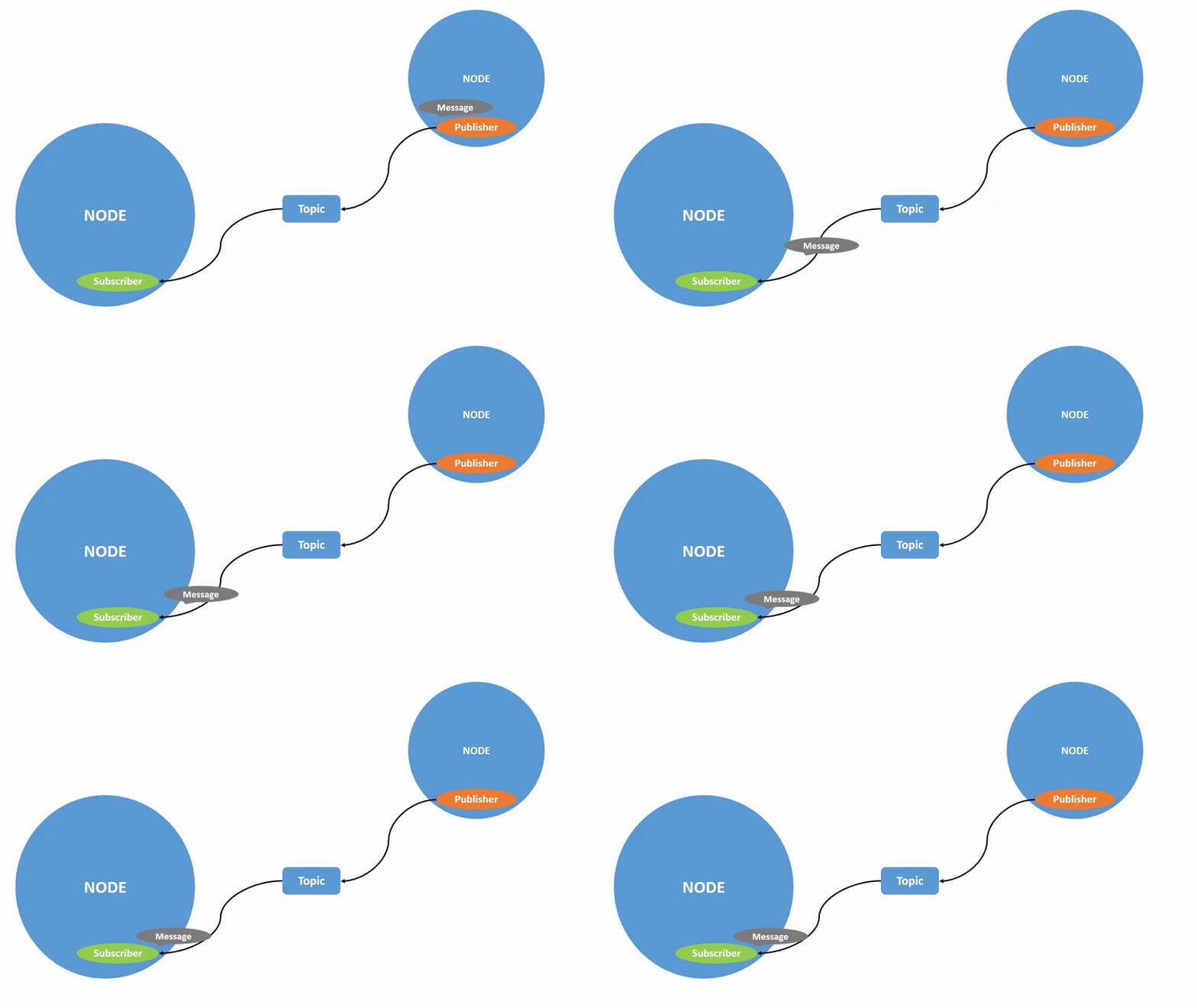
A node can publish data to any number of topics and subscribe to any number of topics at the same time.
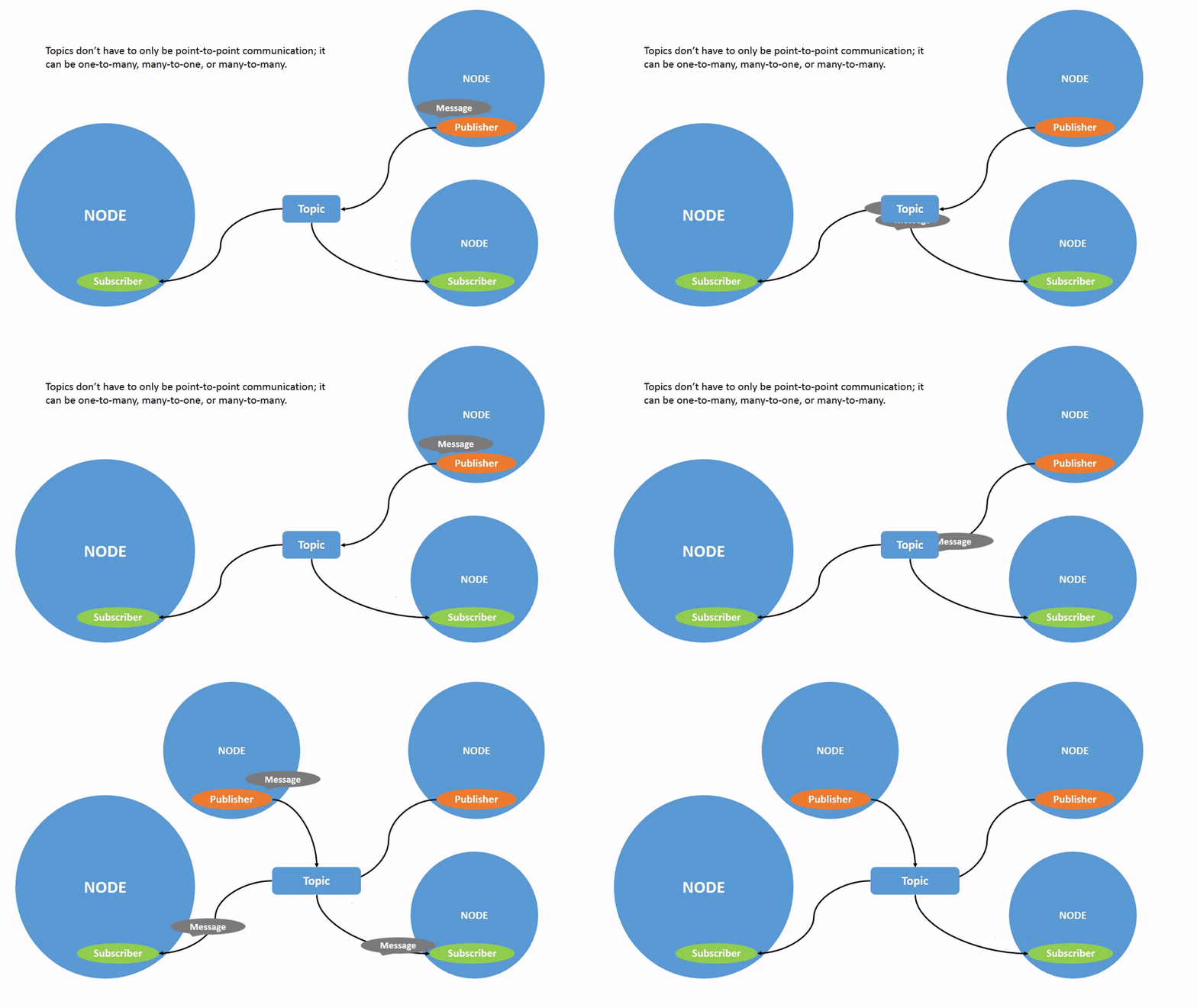
Topics are one of the primary ways data is passed between nodes and between different parts of the system.
Tasks
1 Setup
By now, you should be familiar with how to launch turtlesim.
Open a new terminal and run:
ros2 run turtlesim turtlesim_nodeOpen another terminal and run:
ros2 run turtlesim turtle_teleop_key2 rqt_graph
In this tutorial, we will use rqt_graph to visualize the changes in nodes and topics, and the connections between them.
To run rqt_graph, open a new terminal and enter the following command:
rqt_graphYou can also open rqt_graph by opening rqt and selecting Plugins > Introspection > Node Graph.
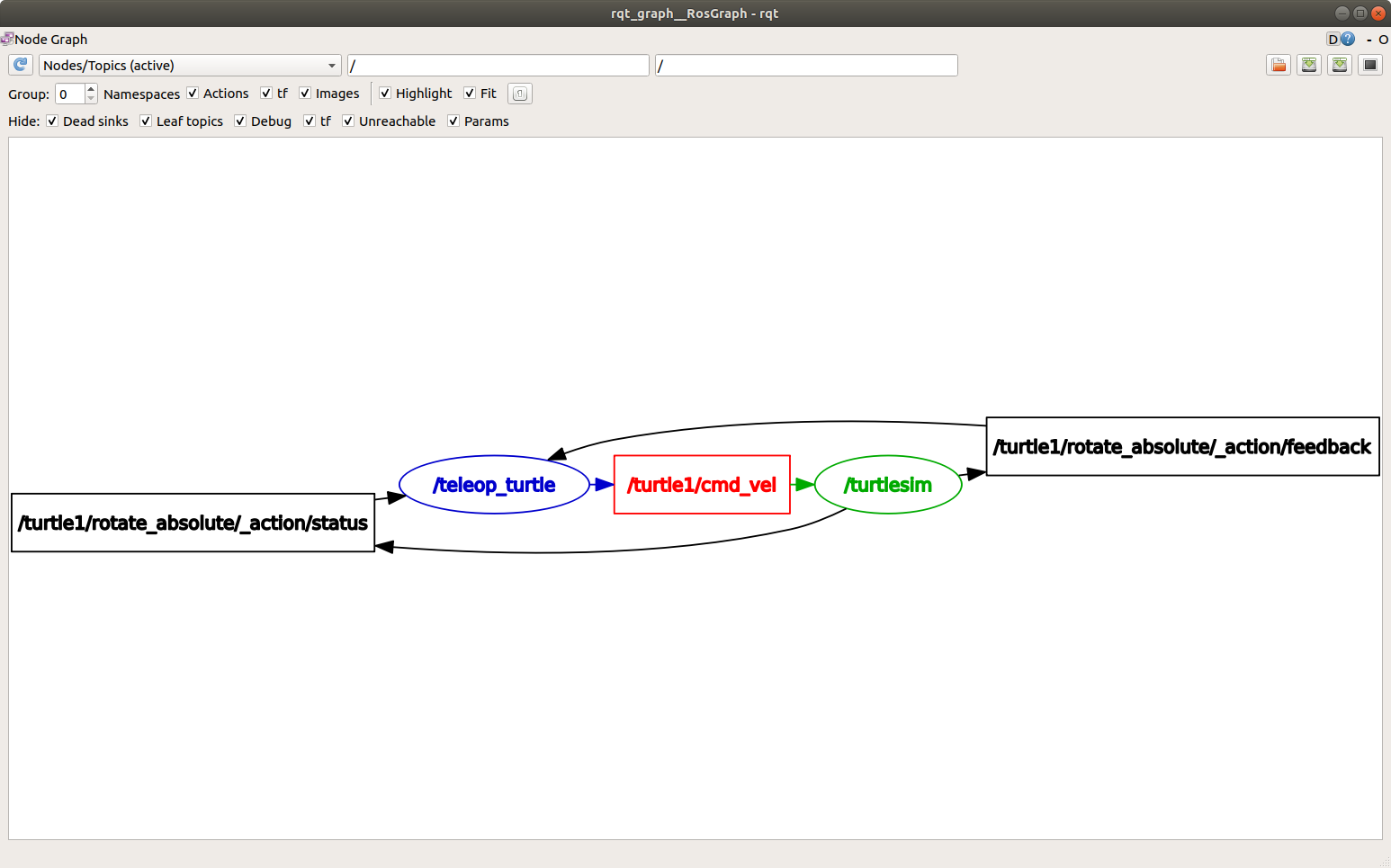
You should be able to see the nodes and topics mentioned above, as well as two actions around the graph (ignore them for now). If you hover your mouse over the central topic, you will see a color highlight similar to the one in the image above.
This graph describes how the /turtlesim node and the /teleop_turtle node communicate with each other through a topic. The /teleop_turtle node publishes data (the key presses you enter to move the turtle) to the /turtle1/cmd_vel topic, while the /turtlesim node subscribes to this topic to receive the data.
The highlighting feature of rqt_graph is very helpful when examining more complex systems with many nodes and topics connected in various ways.
rqt_graph is a graphical introspection tool. Now we will look at some command line tools for introspecting topics.
3 ros2 topic list
Running the ros2 topic list command in the new terminal will return a list of all currently active topics in the system:
/parameter_events
/rosout
/turtle1/cmd_vel
/turtle1/color_sensor
/turtle1/pose
ros2 topic list -t will return the same list of topics, this time with the topic types appended in parentheses:
/parameter_events [rcl_interfaces/msg/ParameterEvent]
/rosout [rcl_interfaces/msg/Log]
/turtle1/cmd_vel [geometry_msgs/msg/Twist]
/turtle1/color_sensor [turtlesim/msg/Color]
/turtle1/pose [turtlesim/msg/Pose]
In particular, the type attribute is how nodes understand that they are transmitting the same information through the topic.
If you want to know the locations of all these topics in the rqt_graph, uncheck all the checkboxes under "Hidden:"
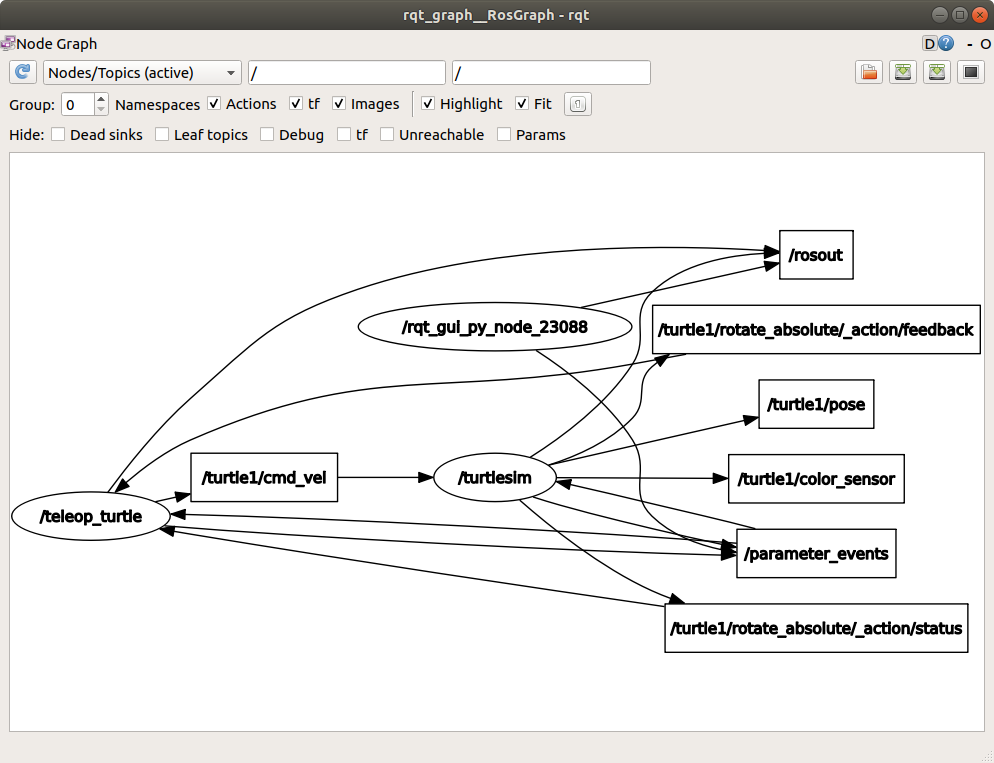
For now, keep these options selected to avoid confusion.
4 ros2 topic echo
To view the data being published on a topic, use:
ros2 topic echo <topic_name>Since we know that /teleop_turtle is publishing data to /turtlesim on the /turtle1/cmd_vel topic, let's use echo to inspect that topic:
ros2 topic echo /turtle1/cmd_velAt first, this command will not return any data. This is because it is waiting for /teleop_turtle to publish something.
Go back to the terminal running turtle_teleop_key and use the arrow keys to move the turtle. While observing the terminal running echo, you will see the position data being published with each movement:
linear:
  x: 2.0
  y: 0.0
  z: 0.0
angular:
  x: 0.0
  y: 0.0
  z: 0.0
  ---
Now go back to rqt_graph and uncheck the Debug box.
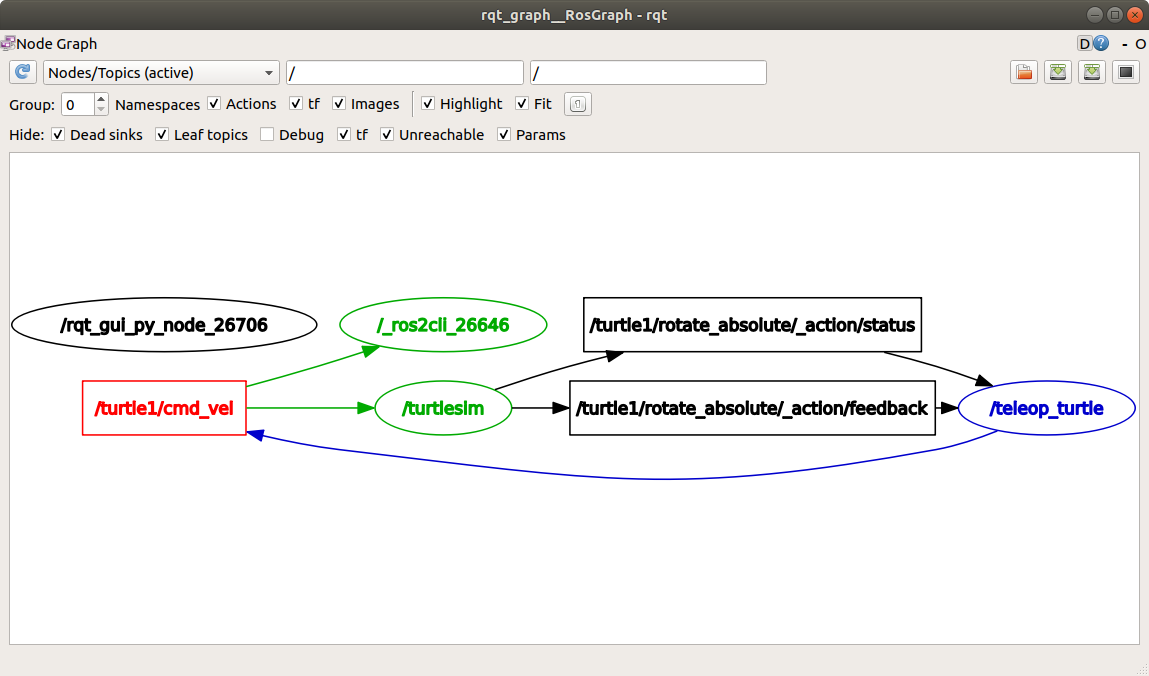
/_ros2cli_26646 is the node created by the echo command we just ran (the number may be different). Now you can see that the publisher is publishing data through the cmd_vel topic, and the two subscribers are subscribing to it.
5 ros2 topic info
Topics can be used for one-to-one, one-to-many, many-to-one, or many-to-many communication.
Another way to understand this is to run:
ros2 topic info /turtle1/cmd_velThe result will be:
Type: geometry_msgs/msg/Twist
Publisher count: 1
Subscription count: 2
6 ros2 interface show
Nodes use messages to send data over topics. Publishers and subscribers must send and receive messages of the same type to communicate.
After running ros2 topic list -t, we can see the topic types mentioned earlier, which tell us the message types used by each topic. Recall that the type of the cmd_vel topic is:
geometry_msgs/msg/TwistThis means that there is a msg named Twist in the geometry_msgs package.
Now we can run ros2 interface show <msg type> on this type to learn more about it. Specifically, what is the expected data structure of the message.
ros2 interface show geometry_msgs/msg/TwistFor the above message type, it produces the following result:
# This expresses velocity in free space broken into its linear and angular parts.

    Vector3  linear
            float64 x
            float64 y
            float64 z
    Vector3  angular
            float64 x
            float64 y
            float64 z
This tells you that the /turtlesim node expects to receive a message with two vectors, linear and angular, each with three elements. If you recall the data that /teleop_turtle sends to /turtlesim as seen by the echo command, it has the same structure:
linear:
  x: 2.0
  y: 0.0
  z: 0.0
angular:
  x: 0.0
  y: 0.0
  z: 0.0
  ---
7 ros2 topic pub
Now that you have the message structure, you can publish data to a topic directly from the command line using the following command:
ros2 topic pub <topic_name> <msg_type> '<args>'The <args> parameter is the actual data you will pass to the topic, and its structure is the same as you learned in the previous section.
Note that this parameter needs to be entered in YAML syntax. Enter the full command as follows:
ros2 topic pub /turtle1/cmd_vel geometry_msgs/msg/Twist "{linear: {x: 2.0, y: 0.0, z: 0.0}, angular: {x: 0.0, y: 0.0, z: 1.8}}"When there are no command line options, the ros2 topic pub message frequency will run steadily at 1 Hz.
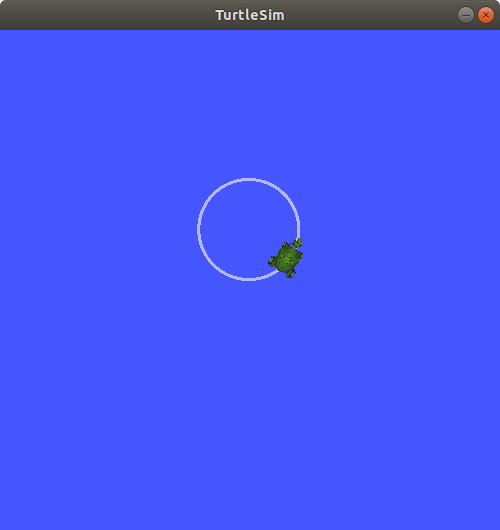
Sometimes, you want to publish data to a topic only once (i .e. not continuously), and you can use the --once parameter.
ros2 topic pub --once -w 2 /turtle1/cmd_vel geometry_msgs/msg/Twist "{linear: {x: 2.0, y: 0.0, z: 0.0}, angular: {x: 0.0, y: 0.0, z: 1.8}}"--once is an optional parameter, which means that the node exits after publishing a message.
-w 2 is also an optional parameter, which means that the node waits for two matching subscriptions. Because we have two subscriptions: turtlesim and topic. You can see in the terminal:
Waiting for at least 2 matching subscription(s)...
publisher: beginning loop
publishing #1: geometry_msgs.msg.Twist(linear=geometry_msgs.msg.Vector3(x=2.0, y=0.0, z=0.0), angular=geometry_msgs.msg.Vector3(x=0.0, y=0.0, z=1.8))
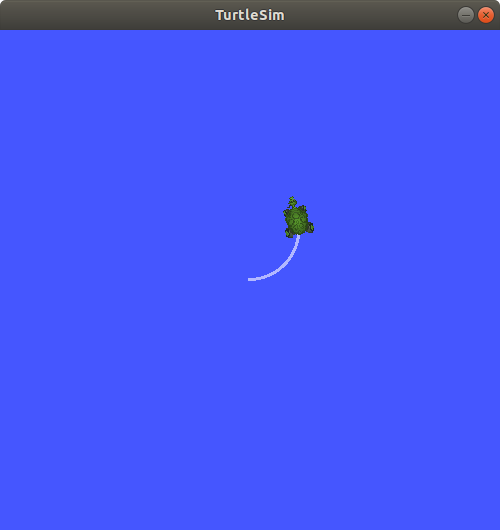
And you will see your little turtle moving as shown in the following figure:
You can refresh rqt_graph to view the graphical information. You will see that the ros2 topic pub... node (/_ros2cli_30358) is publishing messages on the /turtle1/cmd_vel topic, and these messages are received by the ros2 topic echo... node (/_ros2cli_26646) and the /turtlesim node.
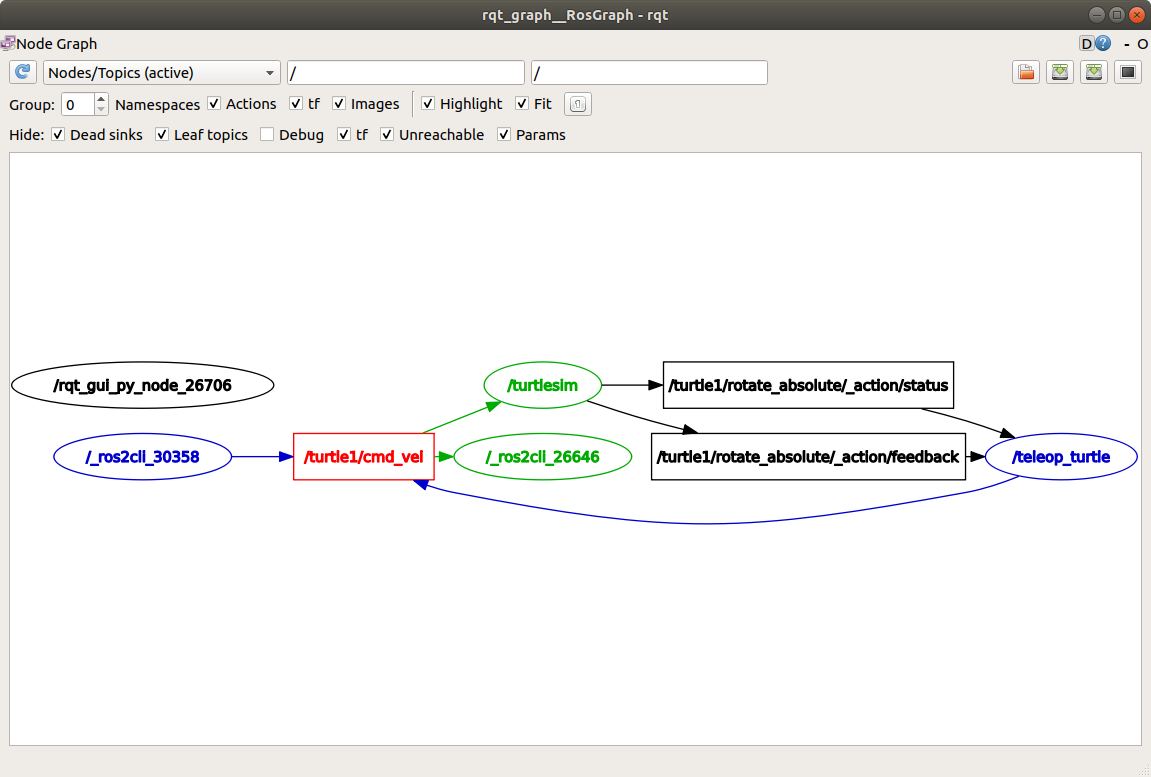
Finally, you can run the echo command on the pose topic and check rqt_graph again.
ros2 topic echo /turtle1/pose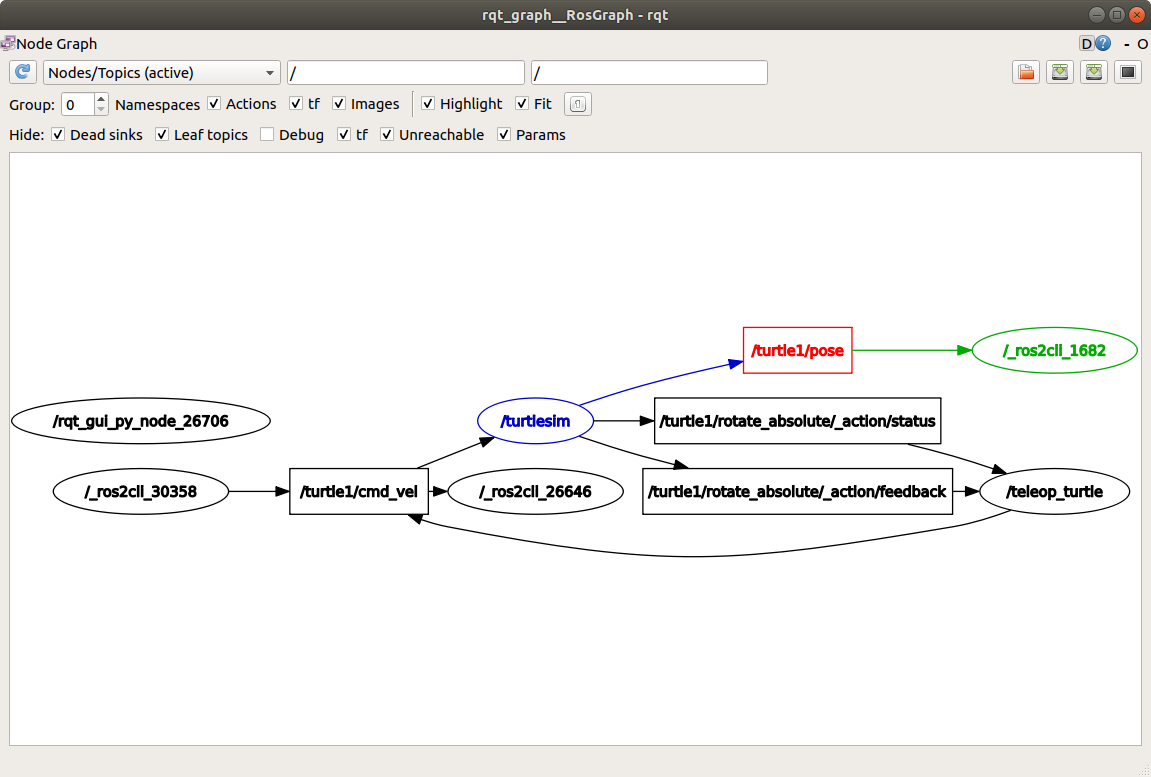
You can see that the /turtlesim node is also publishing messages to the pose topic, and the new echo node has subscribed to the topic.
When publishing messages with timestamps, pub has two methods: The current time is automatically filled in. For std_msgs/msg/Header messages, the header can be set to auto to fill in the stamp field.
ros2 topic pub /pose geometry_msgs/msg/PoseStamped '{header: "auto", pose: {position: {x: 1.0, y: 2.0, z: 3.0}}}'If the message does not use a complete header, but only one field builtin_interfaces/msg/Time, it can be set to now.
ros2 topic pub /reference sensor_msgs/msg/TimeReference '{header: "auto", time_ref: "now", source: "dumy"}'8 ros2 topic hz
You can use the following command to check the data publishing rate:
ros2 topic hz /turtle1/poseIt will return the rate at which the /turtlesim node publishes data to the pose topic.
average rate: 59.354
  min: 0.005s max: 0.027s std dev: 0.00284s window: 58
Recall that you used ros2 topic pub --rate 1 to set the rate of turtle1/cmd_vel to a steady 1 Hz. If you run the above command using turtle1/cmd_vel instead of turtle1/pose, you will see the average value that reflects this rate.
9 ros2 topic bw
You can use the following command to check the bandwidth of a topic:
ros2 topic bw /turtle1/poseThe bandwidth utilization and the number of messages published to the /turtle1/pose topic will be returned.
Subscribed to [/turtle1/pose]
1.51 KB/s from 62 messages
    Message size mean: 0.02 KB min: 0.02 KB max: 0.02 KB
10 ros2 topic find
You can use the following command to list the available topics of a given type:
ros2 topic find <topic_type>Recall that the type of the cmd_vel topic is:
geometry_msgs/msg/TwistWhen there are messages, use the find command to output the available topics:
ros2 topic find geometry_msgs/msg/TwistThe output will be:
/turtle1/cmd_vel11 Clean up
At this point, you will have many running nodes. Do not forget to press Ctrl+C in each terminal to stop them.
Reference:
[1]: https://docs.ros.org/en/humble/Tutorials.html
[2]: https://github.com/ros2/ros2_documentation/blob/humble/source/Tutorials.rst
Licensed under the MulanPSL2
 J.G.W.A.B. No. 11030102011597